Managing a Trip List
Welcome to the Transportation Manager Trip List, your central hub for managing and tracking all transportation requests. This intuitive home page displays your trip requests at a glance and provides powerful filtering tools to help you quickly find what you need, whether you are entering new requests or reviewing existing ones.
The landing page features two tabs: Requests and All Trips. The filtering options differ slightly between the tabs. For example, both Status filtering and Excel export option are available only in the All Trips tab.
You can view your trips in two formats:
-
List View
-
Calendar View
List View
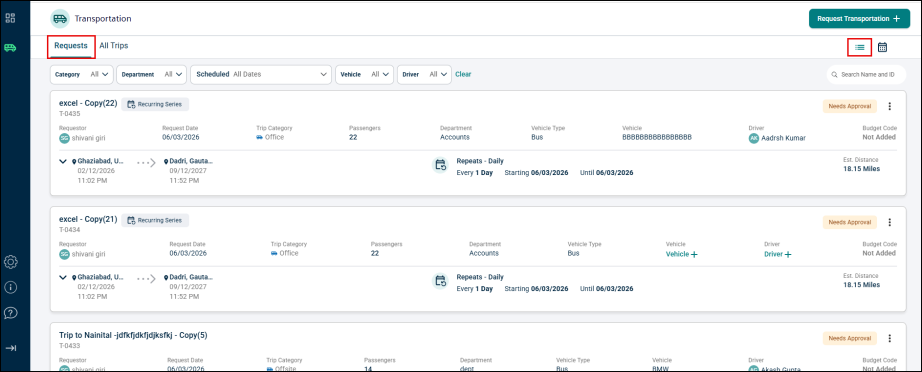
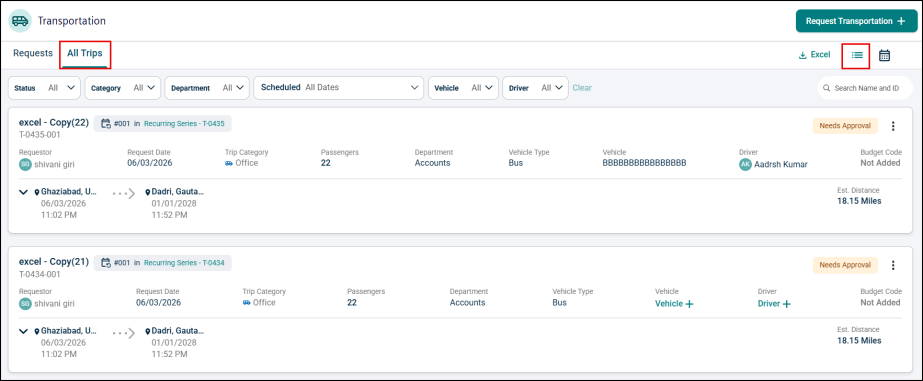
If users have added trip requests, they will be displayed here. Otherwise, this page will be blank.
Export to Excel
Click the Excel button at the top right corner to download the complete trip request list.

NOTE The trip requests gets downloaded as per the filters applied.
Filtering a Trip Request
At the top of the Transportation page, a set of dropdown filters allows users to narrow down trip requests by Status, Category, Date Range, Vehicle, and Driver.

Status
The Status dropdown filter allows users to filter trip requests based on their current status.
-
Click the Status dropdown.
-
Select the checkboxes for Draft, Approved, Canceled, Declined,and Needs Approval trips options or use Select All to include all trips.
-
Click Done to apply filter.

Category
The Category dropdown enables users to filter trip requests based on the category of the trip.
-
Click the Category dropdown.
-
Select the checkboxes next to the type of trip you want to filter or Select All.
-
Click Done to apply filter.

Department
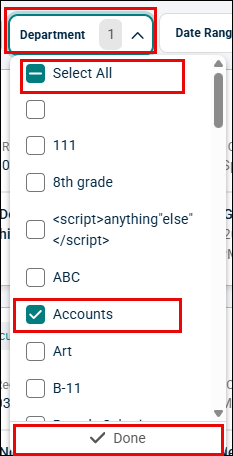
The Department dropdown enables users to filter trip requests based on the department.
-
Click the Department drop-down list.
-
Select the checkbox next to the department of the trip you want to filter or Select All.
-
Click Done to apply filter.
Scheduled
The Scheduled dropdown allows users to select a specific range of days or dates to display only the trip requests scheduled within that period.
-
Click the Scheduled dropdown to get the days range list.
-
Select the required days or click Custom Range.

-
Select the date range manually.
-
Click Done to apply the filter.

Vehicle
The Vehicle dropdown allows to filter trips according to the assigned vehicle or vehicle type.
-
Click the Vehicle dropdown.
-
Select the vehicle you want to view.
-
Click Done to apply the filter.

Driver
The Driver dropdown enables users to filter trip requests by driver, showing all trips assigned to a particular driver.
-
Click the Driver dropdown.
-
Select the drivers whose trips you want to view.
-
Click Done to apply filter.

Clear
Click Clear to clear all the applied filters.

Search
The search bar on the right side of the filters helps users search for trip requests by entering a trip name or ID.

Calendar View
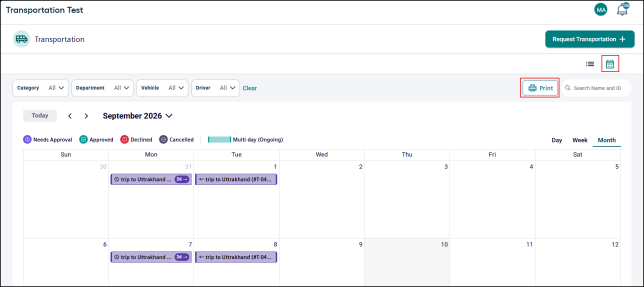
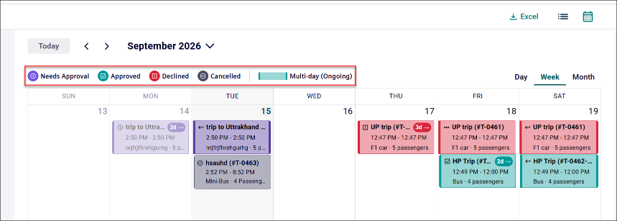
Visualize all trips in an intuitive calendar interface with status-based color coding, status such as Needs Approval, Approved, Declined, and Cancelled. Quickly identify scheduling conflicts and resource availability for more effective planning and resource allocation. The comprehensive timeline view allows you to switch seamlessly between Month, Week, Day, and List modes for tailored planning. Effortlessly filter trips by drivers and vehicles to focus on the details that matter most.
Status
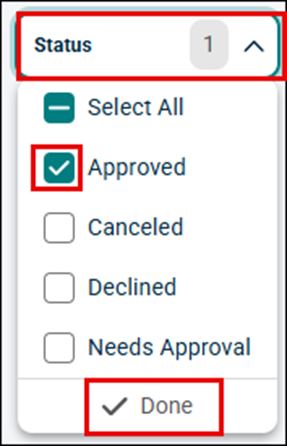
The Status dropdown filter allows users to filter trip requests based on their current status.
-
Click the Status dropdown.
-
Select the boxes for Approved, Declined, Needs Approval trips options or use Select All to include all trips.
-
Click Done to apply filter.
Category
The Category dropdown enables users to filter trip requests based on the category of the trip.
-
Click the Category dropdown.
-
Select the Checkboxes next to the type of trip you want to filter or Select All.
-
Click Done to apply filter.

Department
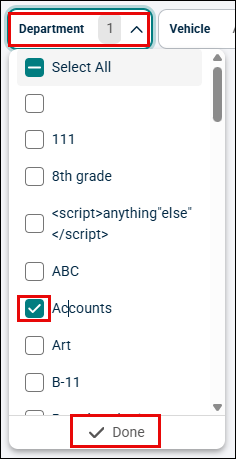
The Department dropdown enables users to filter trip requests based on the department.
-
Click the Department drop-down list.
-
Select the checkbox next to the department of the trip you want to filter or Select All.
-
Click Done to apply filter.
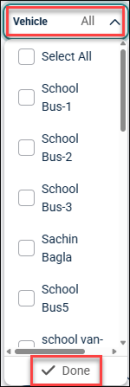
Vehicle
The Vehicle dropdown allows to filter trips according to the assigned vehicle or vehicle type.
-
Click the Vehicle dropdown.
-
Select the vehicle you want to view.
-
Click Done to apply the filter.
Driver
The Driver dropdown enables users to filter trip requests by driver, showing all trips assigned to a particular driver.
-
Click the Driver dropdown.
-
Select the drivers whose trips you want to view.
-
Click Done to apply filter.

Clear
Click Clear to remove all the applied filters.

Search
The searchbar on the right side of the filters helps users search for trip requests by entering a trip name or ID.

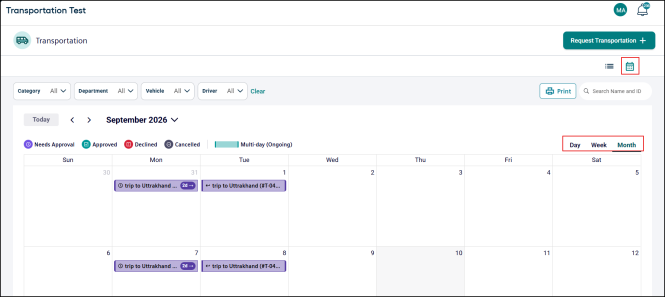
Timeline View
The comprehensive timeline view allows you to switch seamlessly between Month, Week, and Day modes for tailored planning.
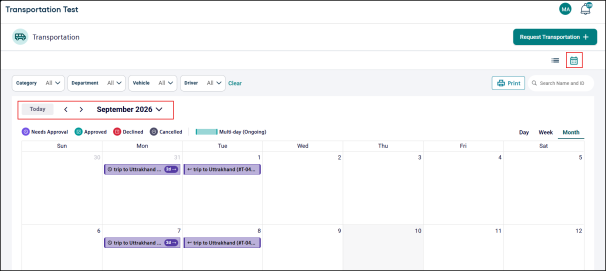
Date Range
The date range displays the period for which users want to view trip details.
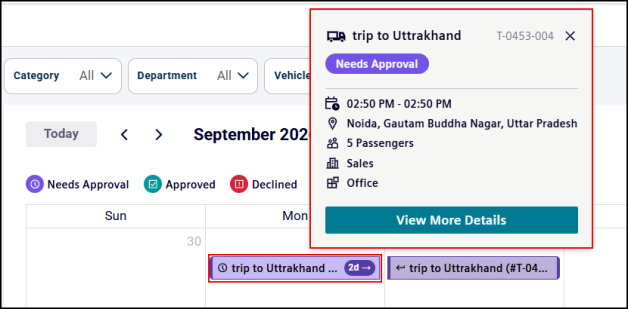
Trip Details
To view trip details, click a trip card. A details pop-up window opens, displaying key trip information. To see additional information, click View More Details.
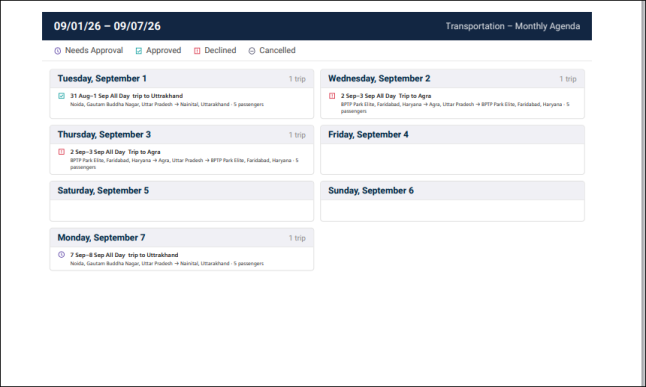
The Print button allows users to print or download all trip details displayed in the calendar view.